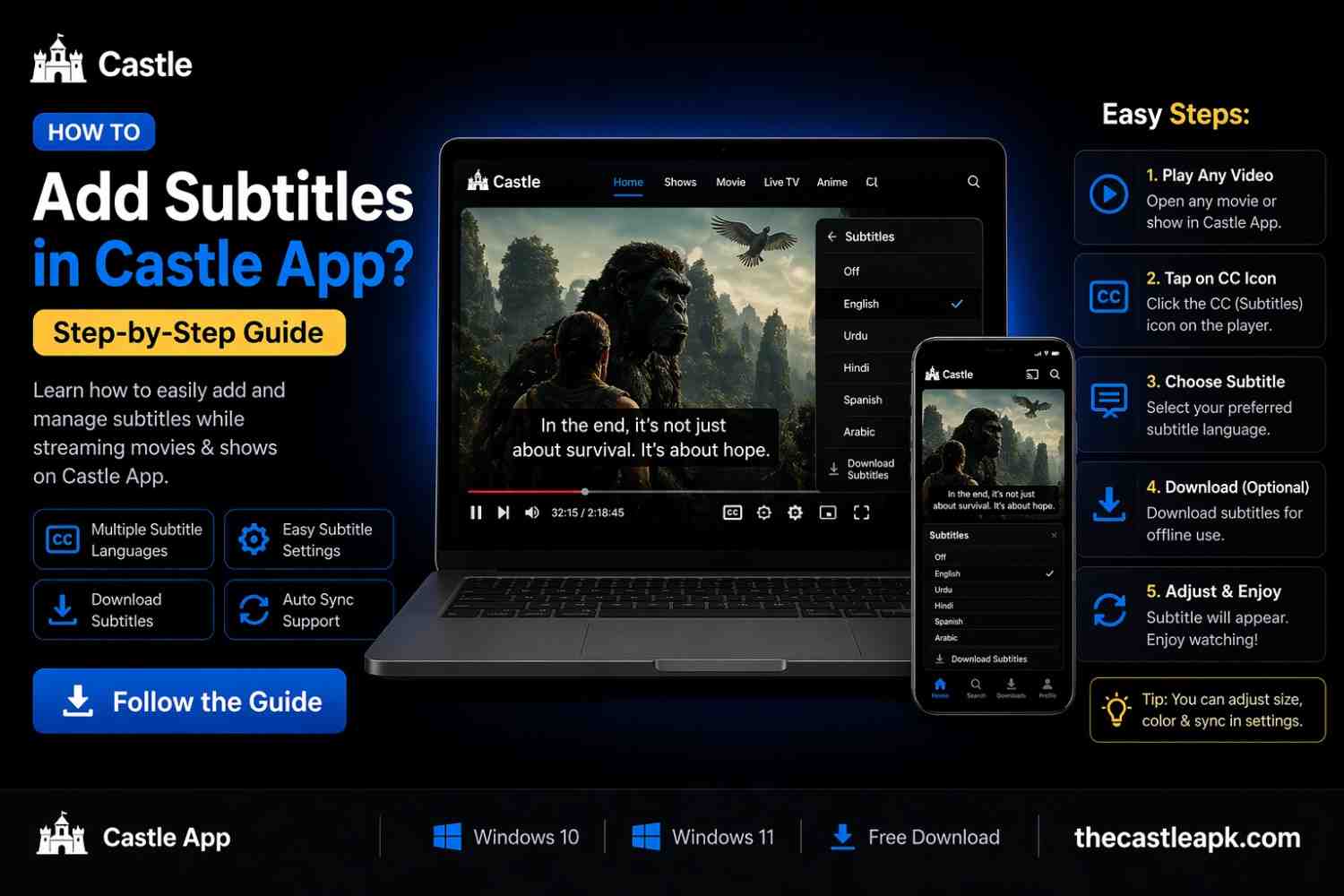
How to Add Subtitles in Castle App? (Step-by-Step Guide)
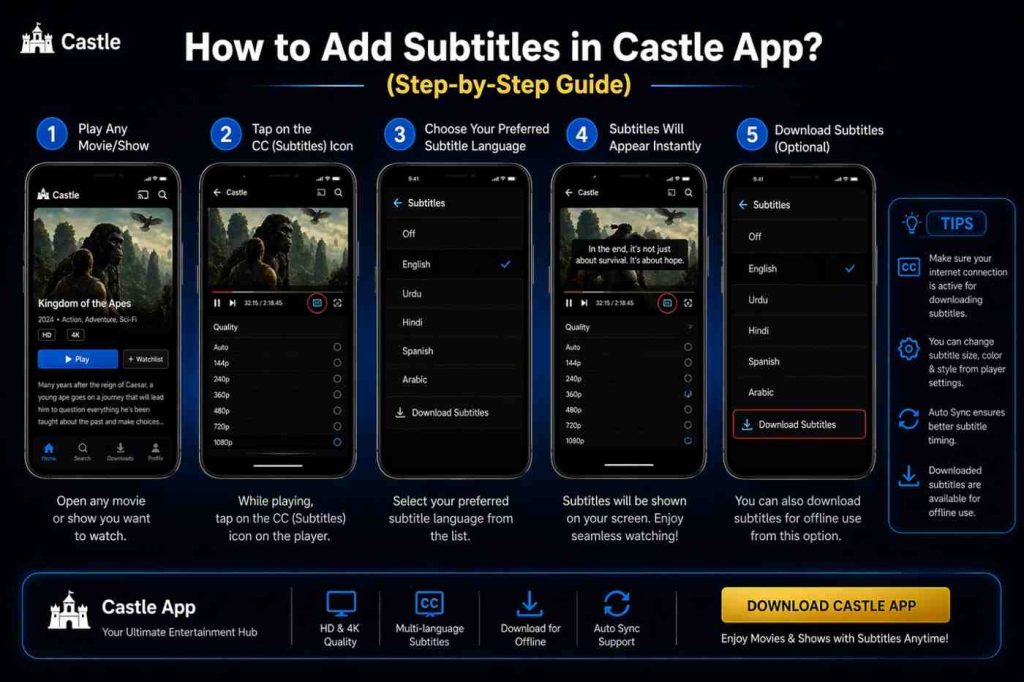
Quick Answer: To add subtitles in Castle App, open the app → play your video → tap the settings or three-dot menu → select “CC/Subtitles” → load your external subtitle file (.SRT or .VTT) → enable and customize. That’s it!
Introduction to Subtitles
I’ve been using this streaming app for a while now, and honestly, the one feature that completely changed my experience was subtitles. Whether I was watching a Korean drama late at night with the volume low, or trying to follow a fast-paced Bollywood dialogue subtitles saved the day every single time.
Castle App is a free streaming platform that gives you access to movies, TV shows, live sports, dramas, and web series across multiple languages. It works smoothly on Android phones, smart TVs, and tablets. And one of its most underrated features? Full subtitle support.
If you’re wondering how to add subtitles in Castle App, you’re in the right place. This guide covers everything from downloading the right subtitle file to fixing sync issues based on real hands-on experience.
Why Subtitles Matter in Castle App?
Before jumping into the steps, let me quickly tell you why I think subtitles are a must-have feature:
- Better dialogue understanding: Even in your native language, fast speech or heavy accents can be hard to follow. Once you add subtitles in Castle App, that gap disappears instantly.
- Accessibility for hearing-impaired users: Viewers with hearing difficulties never miss a single word or plot detail subtitles make content fully inclusive.
- Multi-language support: Watching a Spanish thriller or a Japanese anime? Simply load subtitles in your preferred language and enjoy without confusion.
- Cultural context and clarity: Subtitles often carry translated idioms and cultural references that help you actually understand what’s happening, not just hear it.
Types of Subtitles You Can Use in Castle App
Not all subtitles work the same way. Here’s what I learned from actually using them:
Open Subtitles (Hardcoded)
These are permanently burned into the video itself. You cannot turn them off. They’re common in older foreign films or fan-translated content. If the video already has text on screen, that’s an open subtitle no action needed from your side.
Closed Subtitles (Soft Subtitles)
This is the type most viewers use when they add subtitles in Castle App. Closed subtitles are separate files that you load manually. The best part? You can turn them on or off anytime during playback. I always recommend this option because it gives you full control over your viewing experience.
Captions vs Subtitles – What’s the Difference?
| Feature | Subtitles | Captions |
| Shows dialogue | ✅ Yes | ✅ Yes |
| Shows sound effects | ❌ No | ✅ Yes (e.g., [door slams]) |
| Best for | Language barriers | Hearing-impaired viewers |
| Toggle on/off | Yes (if closed) | Yes |
In short: Subtitles translate or transcribe spoken words. Captions go a step further by also describing background sounds and speaker identity. For most viewers, subtitles are the go-to choice.
Requirements Before Adding Subtitles in Castle App
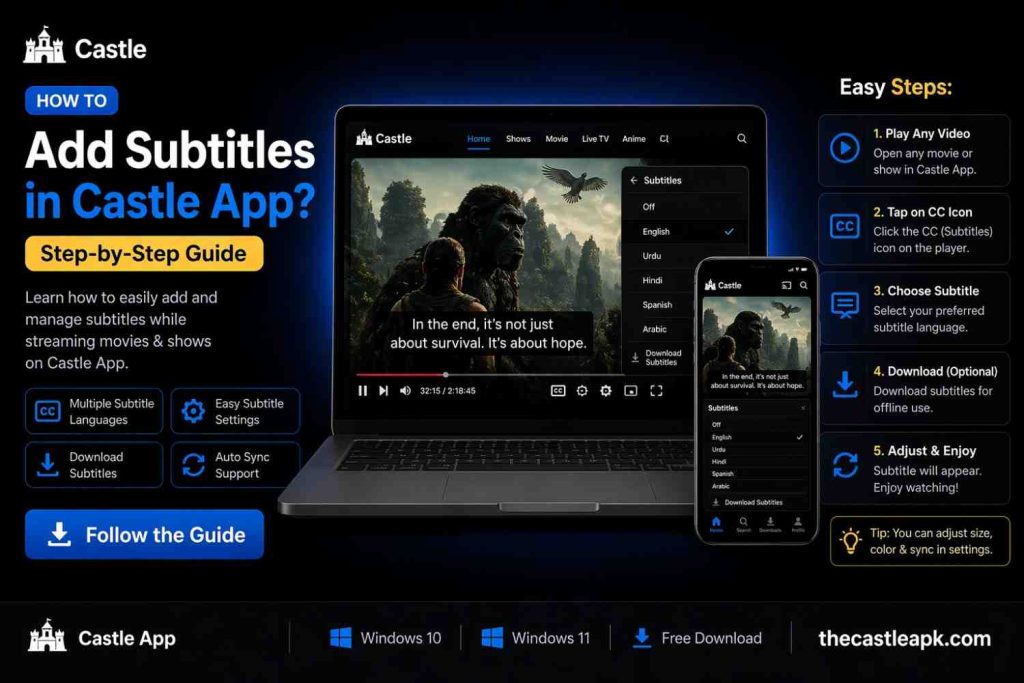
Before you follow the steps, make sure you have these basics covered:
- Supported formats: The app works best with .SRT (SubRip) and .VTT (Web Video Text Tracks) files. Avoid rare formats like .SSA or .ASS unless you convert them first.
- Matching file names: The subtitle file name should ideally match your video file name. For example: Avengers.2019.mp4 paired with Avengers.2019.srt. This helps the app auto-detect the file.
- Trusted subtitle sources: Use reliable sites like Subscene, OpenSubtitles.org, or YIFY Subtitles. Search by exact movie/show title and match the version to avoid sync issues.
How to Add Subtitles in Castle App? (Step-by-Step Guide)
Here’s the exact process I follow every time no fluff, just real steps.
Step 1: Download a Subtitle File
- Go to OpenSubtitles.org or Subscene
- Search for your movie or show title
- Choose the correct language (English, Urdu, Hindi, etc.)
- Match the version if your video is a BluRay rip, download the BluRay subtitle, not a HDTV version
- Download the file (usually a .zip extract it to get the .SRT file)
- Save it to your phone’s storage in an easy-to-find folder
Pro tip: Wrong version = out-of-sync subtitles. Always double-check the release name before downloading this is the most common mistake new users make.
Step 2: Add the Subtitle File in Castle App
- Open the app on your device
- Find and play the video you want subtitles for
- While the video is playing, tap the settings icon (⚙️) or the three-dot menu at the corner of the screen
- Look for “Subtitles” or “CC” in the options
- Select “Add External Subtitles” or “Load Subtitles”
- Browse your phone storage and select the .SRT or .VTT file you downloaded
- Enable the subtitles they should now appear on screen
Note: Some versions of the app may auto-detect the subtitle file if it’s in the same folder as the video and has a matching name.
Step 3: Sync Subtitles with the Video
Sometimes subtitles appear a few seconds early or late. Here’s how to fix that:
- Go to subtitle settings during playback
- Look for “Subtitle Delay” or “Sync” option
- If subtitles are showing before the dialogue, add a positive delay (e.g., +500ms)
- If subtitles are showing after the dialogue, add a negative delay (e.g., -500ms)
- Adjust in small increments until subtitles match perfectly
This is something most guides skip but it’s honestly the most important step when you’re dealing with a mismatched subtitle file.
Step 4: Customize Subtitle Settings
One great reason to add subtitles in Castle App Pc is the customization you can fully personalize how they look. Here’s what you can change:
- Font size: Increase it if you’re watching on a TV or from a distance
- Font color: White works well on dark scenes, but yellow is easier to read on bright backgrounds
- Background/shadow: Add a subtle dark background behind text for better readability
- Position: Move subtitles to the top if the bottom of the frame has important visuals
Common Issues When Adding Subtitles in Castle App (And How to Fix Them)
I’ve run into all of these myself, so here are honest fixes:
| Problem | Likely Cause | Fix |
| Subtitles not showing | File format not supported | Convert to .SRT using a free tool like Subtitle Edit |
| Subtitles out of sync | Wrong version downloaded | Re-download matching version or use sync adjustment |
| Unsupported file format | Using .SSA, .ASS, or .SUB | Convert to .SRT using Subtitle Edit |
| Subtitle file not detected | File name mismatch | Rename subtitle file to match video file name exactly |
Pros and Cons of Using Subtitles in Castle App
Pros
- Understand every dialogue clearly, even with heavy accents or fast speech
- Watch foreign content without missing a single plot point
- Great for language learners see the words as you hear them
- Accessible for users with hearing difficulties
- Helpful in noisy environments or when you need to keep volume low
Cons
- Can distract from the visuals, especially if you’re a fast reader
- Poorly translated subtitles can sometimes change the meaning
- Occasional sync issues if you download the wrong version
Tips to Improve Your Subtitle Experience in Castle App
After months of experience, here’s what actually helps when you add subtitles in Castle App for IOS:
- Always download subtitles from trusted sources: Subscene and OpenSubtitles rarely let you down
- Match the release version exactly: this alone prevents 90% of sync problems
- Don’t go overboard with customization: a clean white font with a subtle shadow is almost always the most readable setup
- Keep your subtitle files organized: save them in the same folder as your videos for faster loading
- Use .SRT format whenever possible: it’s the most universally compatible format across all devices and apps
FAQs
Can I manually add subtitles in Castle App?
Yes, absolutely. You can add subtitles in Castle App manually by downloading a .SRT or .VTT file, going to the subtitle settings during playback, and loading the file from your device storage.
Which subtitle format works best in Castle App?
.SRT (SubRip Subtitle) is the most compatible and recommended format. .VTT also works well. Avoid .SSA or .ASS formats unless you convert them to .SRT first.
Why are my subtitles not syncing?
The most common reason is a version mismatch your video file and subtitle file are from different releases. Re-download the subtitle that matches your exact video version. You can also manually adjust the delay in subtitle settings.
Can I change subtitle language in Castle App?
Yes. This streaming platform supports multiple languages. Simply download a subtitle file in your preferred language (Urdu, Hindi, French, Spanish, etc.) from a trusted source, then load them through the CC/Subtitles menu in the app.
Conclusion
Adding subtitles in Castle App Old Version is genuinely one of the easiest things to do once you know where to look. Download a matching .SRT file, load it through the subtitle menu, sync it if needed, and customize it to your taste. That’s the whole process.
Whether you’re watching international content, learning a new language, or just tired of missing dialogues knowing how to add subtitles in Castle App makes your streaming experience complete. Take a few minutes to set it up properly the first time, and you won’t have to think about it again.
Happy streaming!