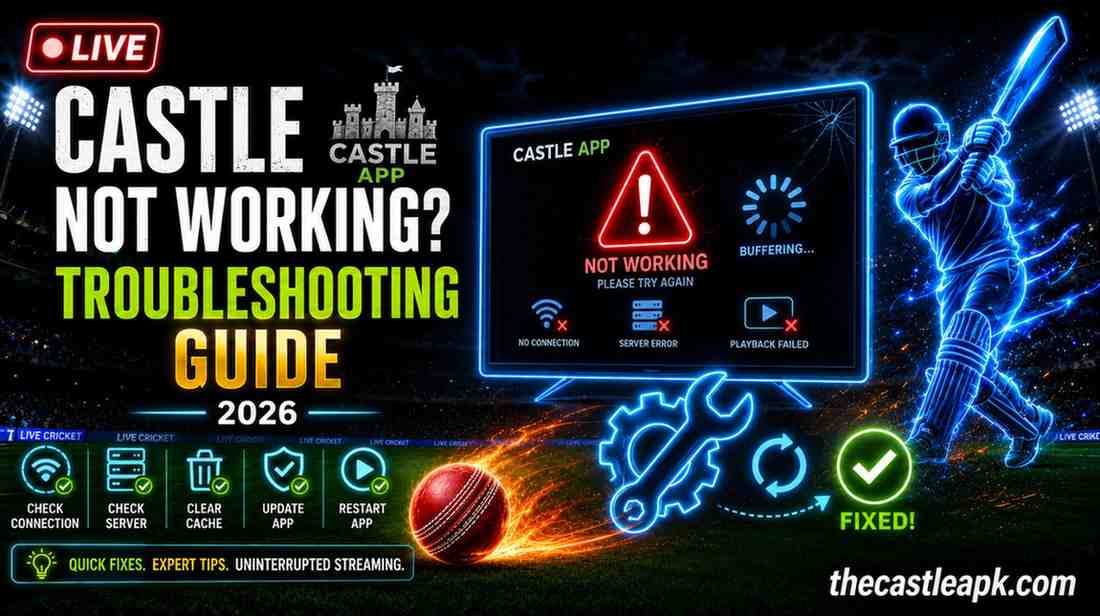
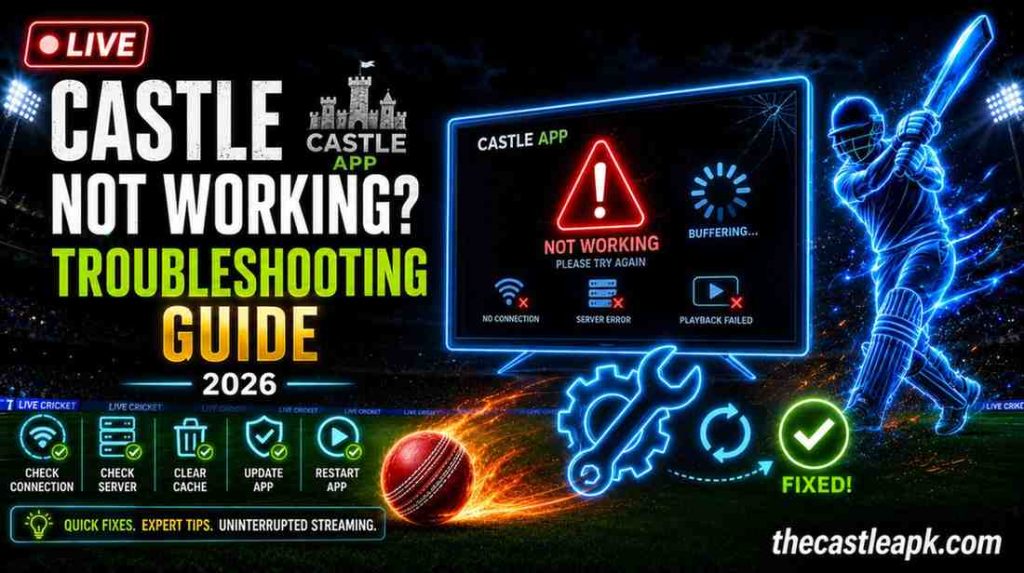
Castle Not Working: Common Reasons and Troubleshooting Guide (2026)
There is nothing more frustrating than sitting down after a long day, opening Castle App, and seeing it refuse to load. I have been there more times than I care to admit. The spinning circle that never stops, the black screen staring back at you, the “no links available” message right when you were looking forward to that movie every Castle user hits these walls at some point.
The good news? In almost every single case I have dealt with, the fix was simpler than I expected. Castle not working issues almost always come down to a handful of root causes and once you know what to look for, you can sort them out in minutes, not hours. This guide covers everything from quick restarts to deep troubleshooting for installation failures, login problems, buffering, black screens, and more.
Whether you are on an Android phone, Firestick, Android TV, or a PC emulator this guide has you covered.
Why Is Castle Not Working?
Before jumping into fixes, it helps to understand what actually causes Castle app problems. I spent a good amount of time diagnosing my own issues and reading through what other users experienced and most problems trace back to one of eight core reasons.
Unstable or Slow Internet Connection
This is the most common culprit, and the first thing to check every single time. Castle App is a streaming platform it lives and dies on your internet connection. A speed below 5 Mbps will cause constant buffering. Below 2 Mbps and the app may not load content at all.
Even if your Wi-Fi shows full bars, network congestion or router issues can throttle your actual throughput significantly, which is also why many users look for options like Castle App Download Old Version when trying to improve performance or stability.
I once spent twenty minutes thinking Castle App was broken, only to realize my router had silently dropped its connection to my ISP. A quick router restart fixed everything in under two minutes.
Castle Server Issues or Downtime
Sometimes the problem has absolutely nothing to do with your device or internet. Castle App servers go down occasionally for maintenance, unexpected outages, or regional issues. When this happens, no amount of troubleshooting on your end will make the app work until the servers come back up. This is why checking server status is always one of the first steps in any Castle not working situation.
App Bugs, Glitches, or Corrupt Data
Castle App, like any software, occasionally ships updates that introduce new bugs. Cache files can become corrupted over time, stored data can conflict with newer app versions, and background processes can get stuck in loops that make the app behave erratically. These issues tend to appear gradually the app starts getting slower, then starts crashing, then stops opening altogether.
Outdated Castle App Version
Running an old version of Castle App is a quiet but significant problem. The app regularly updates its content delivery system, server protocols, and security layers. An outdated APK may simply be incompatible with the current Castle infrastructure resulting in login failures, broken streams, or a blank content library. Always run the latest version.
Device Compatibility Problems
Castle App requires Android OS 5.0 or above for mobile devices. On streaming hardware, it works on Amazon Firestick, Android TV boxes, and Chromecast with Google TV. It does not natively support Samsung Tizen TVs, LG webOS TVs, or iOS devices. If your device does not meet these specs, Castle not working is expected behavior not a bug.
Low Storage or System Performance Issues
A device that is nearly full on storage will struggle to run Castle App properly. The app needs room to create cache files while streaming. If there is no space to write those files, it either crashes or refuses to load content. Similarly, older devices with limited RAM running multiple background apps will stutter and freeze inside Castle App regularly.
Permission Restrictions and Battery Optimization
Android devices especially those running custom ROMs or heavy manufacturer skins like MIUI, One UI, or ColorOS aggressively manage background apps. If battery optimization is enabled for Castle App, the system will kill its background processes mid-stream. Similarly, if Castle App lacks permissions for network access or storage, key features will silently fail without any obvious error message.
VPN, ISP, or Regional Access Problems
Some internet service providers block or throttle certain streaming traffic. In some regions, Castle App content may be restricted entirely. Using a VPN can help bypass these restrictions but a poorly chosen VPN server can also make things worse by adding latency. If Castle App was working fine before and suddenly stopped without any other changes on your device, your ISP may have started filtering that traffic.
Common Castle App Problems Users Face
Over time, I have personally run into several of these and heard about the rest from the wider Castle community. Here is what each problem actually looks and feels like, so you can identify yours quickly.
Castle App Not Opening
You tap the icon, see the Castle splash screen for a second, and then nothing. The app closes back to the home screen without any error message. This is usually a cache conflict, insufficient RAM, or a corrupted APK installation. It can also happen after a failed update where the new APK did not install completely over the old one.
Castle App Keeps Crashing or Freezing
The app opens but becomes unresponsive mid-browse or crashes outright during playback. On older Firestick models and phones with 2 GB RAM or less, this happens when the system runs out of memory. Too many apps running in the background is usually the trigger. Force-closing everything else before opening Castle App often resolves this immediately.
Videos Not Loading or Stuck on Buffering
Content starts loading, the progress bar appears, and then it just stops. Or it plays for five seconds and buffers endlessly. This is almost always an internet speed issue but it can also happen if the specific streaming link Castle App selected is a dead source. Switching to a different stream source within the app player usually resolves this.
Black Screen or Audio Without Video
This one is genuinely confusing the first time you see it you can hear the audio perfectly but the screen stays completely black. This is a codec conflict. Castle App is trying to play a video format that your device hardware decoder cannot handle. Switching the video player inside Castle App from hardware decoding to software decoding fixes this in most cases. VLC as an external player is another reliable solution.
Login or Sign-In Problems
Castle app login issues are particularly common after app updates. The login server sometimes needs a few minutes to recognize updated client versions. Entering wrong credentials is the obvious cause but if you are certain your details are correct, a VPN or a different network connection often resolves authentication failures caused by regional IP restrictions.
No Links Available Error
You find the content you want, hit play, and Castle App shows “No Links Available.” This means the app searched its source database and came up empty for that specific title either the content is temporarily unavailable from its usual sources, or the cached source list inside the app is outdated. Clearing the app cache and trying again usually refreshes the source database.
App Not Installed or Installation Failed
When trying to install Castle APK, you get an “App Not Installed” error or the installation simply fails partway through. The three main causes are: Unknown Sources is not enabled in your device settings, there is a conflicting older version of the app already installed, or the APK file itself was corrupted during download.
Update Problems or Download Errors
Castle App does not update through an official app store it updates manually via a new APK download. If the APK download fails midway or the downloaded file gets corrupted, the update will not apply. A full download using a stable connection, followed by a clean install, is the fix here.
| Problem | Most Likely Cause | First Fix to Try |
| App not opening | Corrupt cache or failed install | Clear cache, then reinstall |
| Keeps crashing | Low RAM or background apps | Force-close all other apps |
| Buffering endlessly | Slow internet or dead source | Speed test + switch source |
| Black screen | Codec / decoder conflict | Switch to software decoder |
| Login failing | Server or IP restriction | Try VPN or different network |
| No links available | Stale source database | Clear cache and retry |
| App not installing | Unknown Sources off or old APK | Enable Unknown Sources |
| Update failing | Corrupt download | Re-download on stable Wi-Fi |
Step-by-Step Troubleshooting to Fix Castle Not Working
Work through these steps in order. Most Castle not working issues are resolved by Step 4 or Step 5. The later steps cover less common but equally real situations.
Step 1: Check Your Internet and Network Stability
Before anything else, test your connection. Open a browser or another streaming app on the same device and see if it loads normally. Run a quick speed test you need at least 5 Mbps for standard streaming and 10 Mbps or higher for HD content on Castle App.
- Run a speed test via Fast.com or Speedtest.net on your device
- If speed is low, move closer to your router or restart the router
- Switch from 2.4 GHz Wi-Fi to 5 GHz if your router supports it faster and less congested
- Try disconnecting and reconnecting to the Wi-Fi network
- If on mobile data, check if data restrictions or data saver mode are active
Pro Tip: If other streaming apps like YouTube or Netflix load fine but Castle is still not working, the issue is app-specific skip to Step 3.
Step 2: Restart Your Device
This sounds almost too basic but a proper restart clears RAM, resets network stack connections, and stops any frozen processes that may be blocking Castle App. I have fixed Castle not opening errors dozens of times with nothing but a full device restart. Hold the power button, select Restart (not just screen off), wait 30 seconds, and try Castle again.
For Firestick users: go to Settings > My Fire TV > Restart. Do not just unplug and replug use the proper restart option so the system shuts down cleanly.
Step 3: Update Castle to the Latest Version
An outdated Castle APK is a silent problem. The app may open and look normal but fail to connect to current content servers because they no longer support the older client version. Always run the latest Castle APK.
- Visit the official Castle App website on your device or phone
- Download the latest APK version
- On Android: go to Settings > Apps > Castle > Uninstall (or install over the top)
- On Firestick: download via the Downloader app using the official Castle URL
- Install the new APK and relaunch Castle App
Warning: Only download Castle APK from the official Castle website. Third-party sites often host outdated or modified APKs that contain malware or simply do not work correctly.
Step 4: Clear Cache and App Data
Cache files are temporary data Castle App stores to load content faster. Over time, these files pile up, become outdated, and start causing conflicts. Clearing them forces the app to rebuild its cache from scratch which fixes a surprising number of Castle not working issues.
On Android Phone or Android TV:
- Go to Settings on your device
- Open Apps or Application Manager
- Find Castle App in the list and tap on it
- Tap Storage
- Tap Clear Cache first then relaunch the app and test
- If the problem continues, go back and tap Clear Data as well (this resets the app to fresh state)
On Firestick:
- Go to Settings > Applications > Manage Installed Applications
- Select Castle App
- Choose Clear Cache, then Clear Data
Note: Clearing Data will log you out of Castle App. Have your login details ready before doing this step.
Step 5: Allow Required Permissions
Castle App needs certain permissions to function correctly particularly network access and storage. On some Android devices, especially after fresh installs, these permissions are not granted automatically. Here is how to check:
- Go to Settings > Apps > Castle App > Permissions
- Make sure Storage is set to Allow
- Make sure Network or Internet access is not blocked
- On MIUI devices (Xiaomi/Redmi): go to Security app > Permissions > Castle App and review all toggles
- On Samsung One UI: check if Restricted Background Data is enabled for Castle disable it
Step 6: Disable Battery Optimization
Battery optimization is one of the most underdiagnosed causes of Castle App not working properly. When your device decides Castle App is consuming too much power in the background, it throttles or kills its processes causing the app to freeze, crash, or lose its streaming connection mid-video, which is why it’s important to Use Castle App Safely.
- Go to Settings > Battery > Battery Optimization (wording varies by device)
- Find Castle App in the list
- Change the setting from Optimized to Don’t Optimize or Unrestricted
- Restart the app and test
Step 7: Free Up Storage Space
Castle App needs free storage not just for installation but for temporary streaming files it creates during playback. If your device has less than 500 MB of free space, you will experience crashes and content loading failures regularly.
- Delete apps you no longer use
- Move photos and videos to Google Drive, Dropbox, or an SD card
- Clear cache for other heavy apps like WhatsApp, Facebook, or TikTok
- On Firestick: uninstall unused apps via Settings > Applications Firestick models typically have 8 GB of internal storage, so space management is critical
Step 8: Reinstall Castle App (Clean Install)
If nothing up to this point has fixed the Castle not working issue, a clean reinstall is your next move. This eliminates any corrupted installation files, broken app data, or failed updates that are causing the problem.
- Uninstall Castle App completely from your device
- Restart the device after uninstalling this clears any remaining app processes
- Download the latest official Castle APK fresh from the official website
- Install the APK (make sure Unknown Sources is enabled)
- Launch Castle App and log in with your credentials
Success Indicator: After a clean reinstall, Castle App should launch to the home screen within 5–10 seconds and content should begin loading immediately on a stable internet connection.
Step 9: Check Device Compatibility
If Castle App never worked on your device not just stopped working compatibility is worth verifying. Here is the confirmed compatibility list:
| Device / Platform | Castle App Compatibility |
| Android Phone (OS 5.0+) | Fully Supported |
| Android TV (OS 6.0+) | Fully Supported |
| Amazon Firestick (All models) | Fully Supported |
| Chromecast with Google TV | Fully Supported |
| PC / Laptop (via Emulator) | Supported (BlueStacks, LDPlayer) |
| Samsung Tizen Smart TV | Not Natively Supported |
| LG webOS Smart TV | Not Natively Supported |
| Apple iOS / iPhone | Not Supported |
| Roku Devices | Not Supported |
Step 10: Verify Server Status
If you have gone through all the above steps and Castle is still not working, there is a real possibility the issue is on Castle’s end not yours. Server outages happen, and no local fix will help during one.
- Visit the official Castle App website if it is down or showing errors, the servers are likely having issues
- Check Castle App’s official social media accounts on Facebook or Telegram for outage announcements
- Use a third-party server checker like DownDetector to see if other users are reporting Castle App down
- Read any error messages Castle App displays carefully messages like “Connection Timeout” or “Service Unavailable” are strong indicators of server-side problems
How to Check if Castle Server Is Down?
Knowing whether the problem is on your side or Castle’s side saves you a lot of wasted troubleshooting time. Here is exactly how I check whenever Castle not working suddenly with no obvious cause.
Visit the Official Castle Website
Open any browser on your phone or computer and try to load the official Castle App website. If the site loads slowly, shows error pages, or does not load at all, the Castle infrastructure is likely experiencing issues. If the site loads fine but the app still does not work, the app servers specifically may be down while the website remains up.
Check Social Media Updates
Follow Castle App on Facebook and Telegram. During server outages or maintenance windows, the official Castle team typically posts updates within 30–60 minutes of an issue starting. These announcements also usually include an estimated restoration time, which tells you whether to wait it out or dig deeper into local troubleshooting.
Read Error Messages Carefully
Castle App displays specific error messages that tell you a lot about what is wrong. “No Internet Connection” points to your network. “Authentication Failed” points to login server issues. “Service Unavailable” or “503 Error” clearly indicates server downtime. “Content Not Available in Your Region” points to geo-restriction a VPN will help here.
| Castle Error Message | What It Means |
| “No Internet Connection” | Your device network issue check Wi-Fi |
| “Authentication Failed” | Login server issue try VPN or wait |
| “Service Unavailable / 503” | Castle server is down wait for restoration |
| “No Links Available” | Content source issue clear cache, retry |
| “Content Not Available” | Geo-restriction use a VPN |
| “Parse Error” | Corrupted APK file re-download and reinstall |
| “App Not Installed” | Unknown Sources off or conflicting old APK |
Use Online Server Status Tools
Tools like DownDetector, IsItDownRightNow, and similar services aggregate user reports in real time. Search for Castle App on any of these platforms. A spike in user-reported outages in the last hour confirms the problem is server-side and not specific to your setup.
Fix Streaming and Buffering Problems on Castle
Buffering is arguably the most common Castle app problem users face. I have gone through several rounds of this myself here is what genuinely works.
Improve Internet Speed
The fastest way to improve streaming on Castle App is to improve your connection quality, not just speed. Even a fast connection that is unstable will cause buffering.
- Restart your router and modem this alone often improves speeds significantly
- Connect your Firestick or Android TV box directly via Ethernet using an adapter for a rock-solid connection
- If on Wi-Fi, switch to the 5 GHz band for less interference and higher throughput
- Pause any background downloads or uploads on your network during streaming
- Ask other household members to pause heavy usage during your streaming session
Adjust Video Quality Settings
Inside Castle App’s player settings, you can manually reduce the streaming quality. Dropping from 1080p to 720p cuts the bandwidth requirement roughly in half. If buffering stops after reducing quality, your internet speed is the limiting factor work on improving your connection rather than the app itself.
Use an External Player if Needed
Castle App allows you to open video content in external players like VLC Media Player or MX Player. This is particularly useful for black screen and codec issues but also helps with buffering because external players often have more advanced buffering controls. When Castle’s built-in player keeps buffering, try opening the same stream in VLC and see if it plays more smoothly.
Try VPN or Switch Network (Optional)
If your ISP is throttling streaming traffic which some do a VPN can bypass that throttling and improve Castle App streaming significantly. Use a reputable, paid VPN service. Free VPNs often have congested servers that make streaming worse, not better. Try connecting to a VPN server in a nearby country first before experimenting with distant locations.
How to Fix Castle Installation Problems?
Installation failures are frustrating because they stop you before you even get started. Every single Castle APK installation error I have seen traces back to one of five causes and all of them are fixable.
Enable Unknown Sources
This is the most common installation barrier. Castle App is not on the Google Play Store or Amazon App Store, so your device will block it by default unless you explicitly allow installations from outside the official store.
On Android Phone: Settings > Security > Unknown Sources toggle ON.
On Android TV: Settings > Device Preferences > Security & Restrictions > Unknown Sources toggle ON.
On Firestick: Settings > My Fire TV > Developer Options > Install Unknown Apps > set to ON for the Downloader app.
Remove Old App Versions
If an older version of Castle App is already installed on your device, a new APK sometimes conflicts with it and fails to install over the top. The cleanest solution is to fully uninstall the existing Castle App first, restart the device, and then install the new APK fresh. This eliminates any leftover files or database entries that could block the new installation.
Download the Latest APK File
Always download the Castle APK directly from the official Castle App website not from any third-party mirror, Telegram group, or file-sharing site. Old versions from unofficial sources are one of the most common reasons Castle App either fails to install or installs but does not work correctly.
Recheck the APK File Integrity
If your download was interrupted or your internet dropped partway through, the APK file will be incomplete and an incomplete APK will always fail to install, usually with a “Parse Error.” Delete the partial file, ensure your internet connection is stable, and re-download the complete APK before attempting installation again.
Update Android Software
If your device is running a very outdated version of Android, some APK files built for newer API levels will simply refuse to install. Go to Settings > About Phone or Device > System Update and check if any software updates are available. Even a minor OS update can resolve APK compatibility blocks.
Troubleshooting Castle on Smart TV, Firestick, and PC
Castle on Android TV and Smart TV
Android TV devices (Sony, TCL, Hisense, Xiaomi Mi Box, NVIDIA Shield) support Castle App fully. The most common issue on these devices is the Unknown Sources setting being in a different location depending on the manufacturer.
- Sony Android TV: Settings > Device Preferences > Security & Restrictions
- Xiaomi Mi Box: Settings > More Settings > Security > Unknown Sources
- TCL Android TV: Settings > Device Preferences > Security
- If Castle App crashes on Android TV, clear RAM by going to the recent apps menu and closing everything before opening Castle
Note: Samsung Tizen TVs and LG webOS TVs cannot run Castle App natively because they do not run Android. Castle App simply cannot be installed on these platforms through any standard method.
Firestick Troubleshooting Tips
Amazon Firestick is one of the most popular devices for Castle App and also the one with the most specific quirks when things go wrong.
- Always use the Downloader app (by AFTVnews) to install Castle APK on Firestick it is the most reliable method
- Enable Install Unknown Apps specifically for Downloader in Developer Options, not globally
- Firestick 1st generation and older Fire TV models have limited storage clear cache aggressively and uninstall unused apps
- If Castle App is extremely slow on Firestick, force-restart by holding the Select and Play buttons together for 5 seconds on the remote
- After installing a new Castle APK, delete the APK file from Downloader to free up storage
Castle on PC or Emulator
Castle App does not have a native PC version, but it runs well through Android emulators. BlueStacks 5 and LDPlayer 9 are the two most reliable options. Here is what to know:
- Download the Castle APK from the official website to your PC
- Open BlueStacks or LDPlayer and drag the APK file into the emulator window to install
- In the emulator settings, allocate at least 4 GB RAM and 4 CPU cores for smooth Castle App performance
- If you see a black screen in the emulator, go to emulator Settings > Display and switch from DirectX to OpenGL rendering
- Windows 11 users can try the Windows Subsystem for Android (WSA) as an alternative to emulators
How to Prevent Castle App Problems in the Future?
After going through enough Castle not working situations, you start to learn what keeps the app running smoothly long-term. These habits have kept my Castle App experience mostly problem-free for months at a time.
Keep the App Updated
Set a monthly reminder to check the official Castle App website for a new APK version. Running the latest version means you always have the most current server compatibility, bug fixes, and content source database. Outdated APKs are the single biggest cause of Castle not working issues that suddenly appear without any changes on the user’s end.
Clear Cache Regularly
Every two to three weeks, go into your device settings and clear the Castle App cache. Not the full data just the cache. This prevents the kind of gradual buildup that leads to slow loading, missing content, and eventual crashes. It takes about 30 seconds and prevents hours of troubleshooting down the line.
Avoid Fake or Modified APK Files
Modded or cracked versions of Castle App circulate on certain Telegram channels and file-sharing sites. These modified APKs often come with malware, do not receive proper updates, and frequently stop working because their modified code is incompatible with Castle’s authentication servers. Only ever install the official Castle APK from the official Castle website.
Monitor Device Storage and Performance
Keep at least 1 GB of free storage on your device at all times if you regularly use Castle App. On Firestick, aim for at least 500 MB free. Use your device’s built-in storage cleaner or a reputable app like Files by Google to manage space without deleting anything important.
Quick Fix Summary for Castle Not Working
If you need a fast answer and do not have time to go through the full guide right now, here is the condensed version:
| Issue | Quick Fix | Time Needed |
| App not opening | Clear cache > Restart device | 2 minutes |
| Keeps crashing | Close background apps > Clear RAM | 1 minute |
| Buffering / not loading | Speed test > Restart router > Lower quality | 3–5 minutes |
| Black screen | Switch to software decoder or VLC | 2 minutes |
| Login not working | Check internet > Try VPN > Clear data | 3 minutes |
| No links available | Clear cache > Retry | 1 minute |
| APK not installing | Enable Unknown Sources > Delete old APK | 5 minutes |
| Server error messages | Check DownDetector > Wait for restoration | Varies |
Frequently Asked Questions
Why is Castle not working on my phone?
The most common reasons are an outdated Castle APK, corrupted cache files, insufficient storage space, or a poor internet connection. Start by clearing the app cache and restarting your device. If that does not help, uninstall Castle App, download the latest official APK, and do a clean reinstall. This resolves the majority of Castle not working on phone cases.
How do I fix Castle app stuck on loading?
First, check your internet speed you need at least 5 Mbps for Castle App to load content reliably. If speed is fine, force-close the app, clear the Castle App cache, and reopen it. If it is still stuck, restart your device and try again. A loading screen that never completes is often caused by a stale cache file or a temporary server connection issue.
Why does Castle keep crashing?
Castle App crashes are usually caused by low available RAM (too many background apps running), insufficient device storage, or a corrupted installation. Close all background apps before opening Castle, free up at least 500 MB of storage, and clear the app cache. If crashes persist, a clean reinstall of the latest Castle APK is the most reliable fix.
How do I stop buffering on Castle?
Restart your router first this alone fixes buffering in many cases. Then run a speed test and confirm you have at least 10 Mbps for HD streaming. Inside Castle App, manually reduce the video quality from 1080p to 720p to see if buffering stops. You can also try opening the stream in VLC Player as an external player, which often buffers more efficiently than Castle’s built-in player.
Why is Castle showing a black screen?
A black screen with audio playing is a codec conflict between the video file format and your device’s hardware decoder. Go into Castle App’s player settings and switch from hardware decoding to software decoding. If the black screen appears with no audio, it is more likely a permissions or app crash issue clear the cache and restart the app.
Is it safe to reinstall Castle?
Yes, reinstalling Castle App is completely safe as long as you download the APK from the official Castle App website. Avoid any third-party sites or modified APK versions. Your account and VIP status are tied to your Castle account credentials, not the local app installation, so you will not lose any account data when you reinstall.
Does Castle work with VPN?
Yes, Castle App is compatible with VPN connections. In fact, a VPN is often recommended for users whose ISP throttles streaming traffic or for accessing regionally restricted content. Use a reputable paid VPN service and connect to a server geographically close to you for the best streaming performance. Free VPN services tend to add latency and can make Castle App perform worse.
What should I do if Castle still does not work after all these steps?
If Castle is still not working after going through the full troubleshooting guide, check the official Castle App social media channels and the DownDetector page for Castle to see if there is a reported server outage. If there is no outage, contact Castle App support directly through their official website with details about your device, OS version, and the specific error you are seeing.
Conclusion
Castle not working is almost never a permanent situation. In every case I have personally dealt with and in everything I have seen from the broader Castle community there was always a fix. The problem almost always traced back to one of the root causes covered in this guide: internet quality, an outdated APK, cache buildup, a missed permission, or a temporary server issue.
The key is to troubleshoot in order start with the basics (internet, restart, update) before moving to deeper fixes like clean reinstalls or device-specific settings. Skipping ahead and doing a full reinstall when a simple cache clear would have worked just wastes your time.
Keep your Castle App updated, clear your cache regularly, only use the official APK, and you will run into very few problems going forward. And when something does go wrong, come back to this Castle App Common Reasons and Troubleshooting Guide every scenario you are likely to face is covered here.