How to Install Castle TV App on Firestick & Android TV? (Step-by-Step Guide)
Can You Install Castle TV on Firestick and Android TV?
Yes! You absolutely can install Castle TV App on Firestick and Android TV, and honestly it is one of the best things I did to upgrade my streaming setup. The process takes less than 10 minutes once you know what you are doing. Since Castle TV is not available on the Amazon App Store or Google Play Store, you have to sideload it using a free tool called Downloader. Both Amazon Firestick and Android TV support this method without any technical expertise.
Here is a quick snapshot of supported devices before we dive in:
| Device | Supported | Install Method |
| Amazon Firestick / Fire TV | Yes | Downloader App (Sideload) |
| Android TV (OS 6.0+) | Yes | Downloader App (Sideload) |
| Chromecast with Google TV | Yes | Downloader App (Sideload) |
| Non-Android Smart TVs | No | Not Supported |
What Is Castle TV App?
I remember the first time someone in my family showed me Castle TV I thought it was just another average streaming app. After using it for a few weeks on my Firestick, I changed my mind completely. Castle TV is a feature-rich media streaming application that lets you watch movies, TV shows, and live content all in one place, without needing a cable subscription.
What makes Castle TV stand out is its clean interface that works brilliantly on large screens. The navigation with a TV remote is smooth, the video player supports HD and Full HD content, and the audio experience genuinely feels like a home cinema setup when paired with a decent sound system.
Key streaming features include:
- HD and Full HD video quality for crystal-clear viewing
- Live TV channels alongside on-demand movies and series
- Subtitle and multi-language audio support
- Fast content search with smart recommendations
- Optimized remote-friendly navigation for TV screens
- Lightweight APK that runs smoothly even on older Firestick models
Who should use it? Castle TV App is perfect for cord-cutters, families who want variety without paying for multiple subscriptions, and anyone looking to get the most out of their Firestick or Android TV box.
Devices Compatible with Castle TV
Before you start the installation, it is worth confirming your device is supported. I have personally tested Castle TV on a couple of these devices, and the experience varies slightly but it works great across the board.
Supported Android TV Devices
Castle TV App works on any Android TV device running Android OS 6.0 (Marshmallow) or above. This covers a wide range of smart TVs and streaming boxes from brands like:
- Sony Android TV (OS 6.0 and above)
- Philips Android TV
- Sharp Android TV
- Hisense Android TV
- TCL with Android TV
- Xiaomi Mi Box and Mi TV Stick
- NVIDIA Shield TV
- Generic Android TV boxes (OS 6.0+)
Amazon Fire TV Stick Models Supported
Good news if you are an Amazon Firestick user Castle TV App on Firestick works across all major Fire TV Stick generations. Here are the confirmed models:
- Fire TV Stick (1st, 2nd, 3rd Generation)
- Fire TV Stick 4K
- Fire TV Stick 4K Max
- Fire TV Stick Lite
- Fire TV Cube (1st and 2nd Generation)
- Amazon Fire TV (Box version)
Chromecast with Google TV Compatibility
Chromecast with Google TV uses Android TV under the hood, which means Castle TV App is fully compatible. The installation method is the same you sideload the APK using the Downloader app, and it works perfectly.
Minimum System Requirements
| Requirement | Minimum Spec |
| Android OS | 6.0 (Marshmallow) or above |
| RAM | 1 GB minimum (2 GB recommended) |
| Storage Space | At least 100 MB free |
| Internet Speed | 5 Mbps (10+ Mbps for HD) |
| Wi-Fi | Stable 2.4GHz or 5GHz connection |
Before Installing Castle TV on Firestick or Android TV
Rushing into the installation without preparation is the number one reason people run into errors. Here is what I always do before sideloading any APK on a new device and Castle TV is no different.
Check Your Internet Connection
Make sure your Firestick or Android TV is connected to a stable Wi-Fi network. A minimum of 5 Mbps download speed is needed, but for HD streaming, you want at least 10 Mbps. A weak connection mid-download can corrupt the APK file and cause install errors later.
Enable Apps from Unknown Sources
Since Castle TV App is not on the official app stores, your device will block it by default. You need to tell your device it is okay to install apps from outside the store. Do not worry this is a standard setting and completely reversible. The exact steps differ slightly between Firestick and Android TV, which I will cover in detail below.
Install the Downloader App
The Downloader app is your best friend for sideloading APKs on Firestick and Android TV. It is free, available directly on the Amazon App Store and Google Play Store, and makes downloading APK files from a URL extremely simple. Think of it as a lightweight browser specifically built for TV devices. If you also use Castle for PC, you’ll find that Downloader serves a similar purpose by simplifying access to installation files on supported devices.
How to Install Castle TV App on Firestick?
I have done this on my own Firestick 4K and it took me about 8 minutes start to finish. Follow these steps carefully and you will have Castle TV running on your Firestick in no time.
Step 1: Open Firestick Settings
From your Firestick home screen, use your remote to navigate to the top menu bar and select Settings (the gear icon on the far right).
Step 2: Enable Developer Options
Inside Settings, scroll right and click on My Fire TV (sometimes listed as Device or Device & Software on older models). Scroll down and select Developer Options from the menu.
Step 3: Allow Unknown Apps (Install Unknown Apps)
Inside Developer Options, find the option that says Install Unknown Apps or Apps from Unknown Sources and toggle it ON. On newer Firestick firmware, you may see a list of apps make sure to enable it for the Downloader app specifically.
Step 4: Download the Downloader App
Go back to the Firestick home screen. Use the search bar (the magnifying glass icon) and type Downloader. You will see the orange Downloader app by AFTVnews. Select it and click Download or Get to install it. It is completely free.
Step 5: Download the Castle TV APK
Open the Downloader app. You will see a URL input box on the home screen. Type in the official Castle TV APK download URL. Double check the URL carefully only download the APK from the official Castle TV website to avoid fake or malicious files. Hit Go and wait for the download to complete. The file is typically under 30 MB so it downloads fast on a decent connection.
Step 6: Install Castle TV App on Firestick
Once the APK is downloaded, Downloader will automatically prompt you to install it. A screen will appear saying Do you want to install this application? Click Install and wait about 30 seconds. Your Firestick will handle the rest.
Step 7: Launch and Set Up the App
After installation is complete, click Open to launch Castle TV directly from the installer. You can also find it in your Apps section on the Firestick home screen. Log in with your existing Castle account or create a new one. The app is ready to use immediately.
Pro Tip: After installing Castle TV on Firestick, go back to Downloader and delete the APK file. This frees up precious storage space on your Firestick, which is limited on most models.
How to Install Castle TV App on Android TV?
Installing Castle TV App on Android TV is nearly identical to Firestick with a couple of small differences in the settings menu layout. Here is exactly how to do it.
Step 1: Enable Unknown Sources
On your Android TV remote, press the Home button and go to Settings. Navigate to Device Preferences (or Security & Restrictions on some models). Look for Unknown Sources and toggle it ON. Some Android TVs show this option under Apps instead of Device Preferences.
Step 2: Install Downloader or Browser
Open the Google Play Store on your Android TV and search for Downloader. Install the Downloader app by AFTVnews the same one used for Firestick. Alternatively, if the Play Store is unavailable on your device, you can use a TV browser like TV Bro to download the Castle TV APK directly.
Step 3: Download the Castle TV APK File
Open the Downloader app and enter the official Castle TV APK URL in the address bar. Hit Go and let the download finish. Make sure your Wi-Fi is stable during this step.
Step 4: Install Castle TV App on Android TV
Once downloaded, the Downloader app will prompt you to install the APK. Click Install and your Android TV will process the installation within 30 to 60 seconds. If prompted about permissions or security warnings, click Install Anyway this is standard behavior for sideloaded apps.
Step 5: Open and Configure the App
Tap Open after installation or find Castle TV in your app drawer. Sign in with your account credentials or register a new account. Take a moment to adjust the video quality settings inside the app based on your internet speed for the best experience.
How to Install Castle TV on Chromecast with Google TV?
Chromecast with Google TV runs on Android TV OS, which makes the process the same as the Android TV method. Here is a quick rundown:
Download Required Tools
Go to Settings on your Chromecast with Google TV. Navigate to System, then Developer Options. Enable Install Unknown Apps. Then open Google Play Store and install the Downloader app.
Install the APK
Open Downloader and enter the official Castle TV APK URL. Once downloaded, click Install when prompted and wait for the installation to complete.
Launch Castle TV
Open Castle TV from your app list. If it does not appear automatically, use the Google TV search bar to find and open it. The app integrates seamlessly with the Chromecast remote layout.
Features of Castle TV on Smart TVs
After spending a good amount of time with Castle TV on both my Firestick and an Android TV box, here is what genuinely impressed me:
HD and Full HD Streaming
Castle TV supports HD (720p) and Full HD (1080p) streaming. On a 55-inch screen, the image quality is sharp and detailed. I noticed very little pixelation even during fast-paced action scenes, which tells you the video encoding is solid.
Large-Screen Viewing Experience
The Castle TV interface is clearly designed for big screens. Fonts are large and readable from across the room, thumbnails are bold and easy to browse, and the entire layout feels like it was made for a TV remote not a touchscreen. This is something a lot of streaming apps get wrong, but Castle TV gets it right.
Easy Remote Navigation
Everything in Castle TV is navigable using just the four directional buttons and the select button on your Firestick or Android TV remote. No complex gestures, no need to use voice commands. My parents figured it out in under five minutes, which I think is the real test for any TV app.
Audio and Subtitle Support
Castle TV supports multiple audio tracks and subtitle options for most content. You can switch subtitles on or off mid-playback directly from the video player. For non-English speakers or for watching foreign content, this is a must-have feature and Castle TV delivers it well.
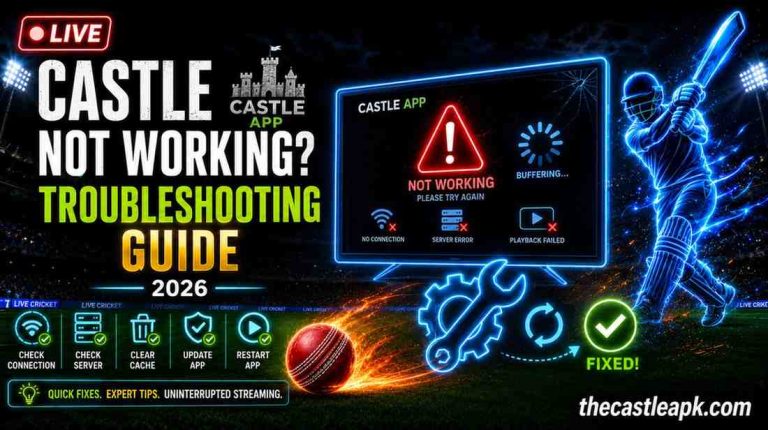
Common Installation Problems and Fixes
Even when you follow every step perfectly, things can occasionally go sideways. Here are the most common issues people run into when they install Castle TV App on Firestick or Android TV and how I fixed them.
APK Not Installing
Cause: Unknown Sources is still disabled OR the Downloader app does not have permission.
Fix: Go back to Settings and confirm that Install Unknown Apps is enabled specifically for the Downloader app. On Firestick, the setting has to be toggled per-app, not globally.
Parse Error
Cause: The APK file is corrupted or partially downloaded.
Fix: Delete the downloaded file from Downloader, restart the device, and re-download the APK fresh from the official source. Never download from third-party mirror sites.
App Not Opening
Cause: Insufficient RAM or storage space on the device.
Fix: Close all background apps on your Firestick or Android TV by holding the Home button and selecting Close All Apps. Free up at least 200 MB of storage. Try launching Castle TV again.
Black Screen Issues
Cause: Incompatible video codec or display resolution mismatch.
Fix: Inside Castle TV settings, switch the video player to a different decoder option (software vs hardware). Also check if your TV and Firestick HDMI settings are set to the correct resolution.
Buffering Problems
Cause: Slow internet speed or network congestion.
Fix: Move your router closer to the Firestick, or switch from 2.4GHz Wi-Fi to 5GHz for faster speeds. You can also lower the streaming quality inside Castle TV from HD to SD temporarily to test if it is a bandwidth issue.
Is Castle TV Safe to Install on Firestick and Android TV?
This is a question I get asked a lot, and it is a smart one. Here is my honest take after using Castle TV for a while:
APK Source Considerations
The safety of any sideloaded app depends almost entirely on where you download the APK from. Always download the Castle TV APK from the official Castle TV website only. Avoid random file-sharing sites, Telegram channels, or third-party app stores that claim to host it.
Security Precautions
- Scan the APK file with a reputable antivirus if possible before installing
- Never give Castle TV permission to access your phone contacts, SMS, or camera no streaming app needs those
- Keep your Firestick and Android TV firmware updated to the latest version
- After installation, consider disabling Unknown Sources again as a precaution
How to Update Castle TV on Firestick and Android TV?
Castle TV does not update automatically like Play Store apps. You need to manually check for and install updates. Here is the cleanest way to do it:
Manual Update Process
- Open Downloader on your Firestick or Android TV
- Enter the official Castle TV APK download URL
- Download the latest version of the APK
- Click Install when prompted the new version will overwrite the old one automatically
- Your login details and preferences will be preserved
If you are experiencing major bugs or crashes, it is sometimes better to uninstall the existing Castle TV app first and then do a fresh install of the latest APK. This gives you a clean slate without leftover cache issues.
Tips for a Better Streaming Experience
After using Castle TV App on Firestick and Android TV regularly, here are the practical tips that made the biggest difference in my experience:
Stable Wi-Fi
If possible, connect your Firestick via an Ethernet adapter instead of Wi-Fi. A wired connection eliminates buffering almost completely. If Ethernet is not an option, place your router in the same room as your TV for stronger signal.
Storage Management
Castle TV can accumulate cache over time. Every few weeks, go to Settings > Applications > Castle TV > Clear Cache. This keeps the app running fast and prevents random crashes. On older Firestick models with limited storage, this step is especially important.
Keeping the App Updated
Set a monthly reminder to check for a new version of the Castle TV APK. Newer versions often include performance improvements, bug fixes, and better streaming server connections. Running an outdated version is one of the top reasons Castle TV stops working correctly.
Frequently Asked Questions
Is Castle TV free to use?
Castle TV App offers a free version with access to a solid library of content. There are also premium plans that unlock additional channels, higher video quality options, and an ad-free experience. For most casual viewers, the free version works perfectly fine to start with.
Can I install Castle TV on any Android TV?
You can install Castle TV App on Android TV devices running Android OS 6.0 (Marshmallow) or higher. Devices running older versions of Android are not supported and will not be able to run the app properly.
Does Castle TV work on Amazon Firestick?
Yes, Castle TV App works on all major Amazon Firestick and Fire TV models including the Firestick Lite, Firestick 4K, and Firestick 4K Max. You install it using the Downloader app since it is not on the Amazon App Store officially.
Do I need the Downloader App to install Castle TV?
The Downloader app is the easiest and most reliable method for installing Castle TV on Firestick and Android TV. Technically, you could use a TV browser to download the APK, but Downloader is specifically built for this purpose and handles the process more smoothly.
Why is Castle TV not working on my TV?
The most common reasons are: outdated APK version, insufficient storage or RAM on the device, poor internet connection, or a corrupted installation. Start by clearing the app cache, checking your internet speed, and if issues persist, uninstall and reinstall the latest version of the APK.
Can I update Castle TV without losing my settings?
Yes. When you install a new version of the Castle TV APK over the existing app, it functions as an update your login credentials and preferences are carried over. Only a full uninstall will reset your settings.
Is Castle TV available on the Google Play Store?
No, Castle TV App is not listed on the Google Play Store or the Amazon App Store. The official way to get it is by downloading the Castle TV APK from the official website and sideloading it using the Downloader app.
Can I install Castle TV on non-Android Smart TVs?
Unfortunately, no. Castle TV App is an Android-based application and only runs on Android TV and Amazon Fire TV platforms. Samsung Tizen TVs, LG webOS TVs, and other non-Android smart TVs cannot run Castle TV natively.
Conclusion
If you have been sitting on the fence about whether to install Castle TV App on Firestick or Android TV, I genuinely hope this guide pushed you to just go for it. The process is straightforward, the app itself is well-built for large screens, and the streaming quality holds up well even on mid-range internet connections.
The key things to remember: always download the APK from the official source, enable Unknown Sources before you start, and use the Downloader app to make the sideloading process painless.
Whether you are on a Firestick, Android TV, or Chromecast with Google TV, Castle TV App delivers a genuine home theater streaming experience, complete with useful features such as Subtitles in Castle App for a more comfortable viewing experience.
If you run into any issues during installation, revisit the troubleshooting section above every problem I have listed there is something I or someone I know has actually encountered and resolved. Good luck, and enjoy the show.